Ever wondered how the Siebel team views are solved. Using the generate reporting relationship it creates a de-normalized table with all the reporting relationships and use this as a based to perform a query. Similar to siebel, we can do a dynamic search in CRM 2011 to perform a me and my team members query.
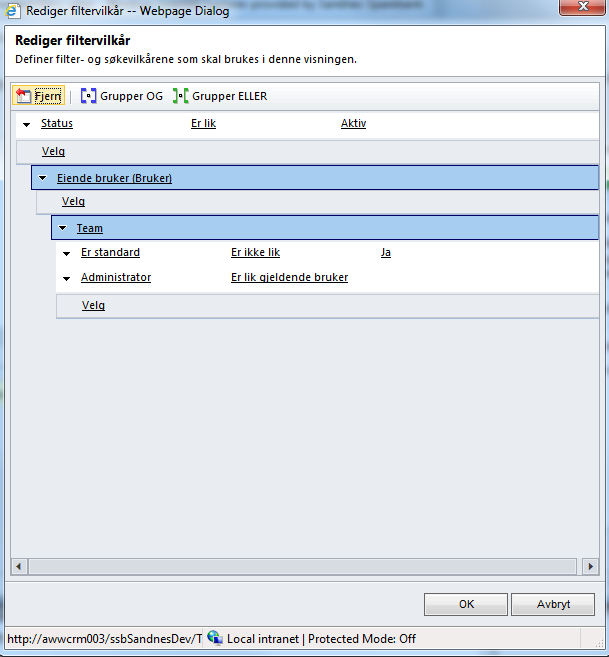
As you can see in the query above, you can filter first based on current users team. For this you start with normal search spec and then select the owning user entity and then it's team and set the "Is standard" option to false and select its users entity and set the user like current user.
For Manager views, use the below query
1. Owning user
2. Team - Manager like current user
Note: This is a manager only view. Comparitively the performance is great with this query.
 |
| PDQ with team members |
As you can see in the query above, you can filter first based on current users team. For this you start with normal search spec and then select the owning user entity and then it's team and set the "Is standard" option to false and select its users entity and set the user like current user.
1. Owning user
2. Team - Set "Is standard" to No
3. Users - User like "current user"
Note:. This is a performance instensive query. Use with caution.
For Manager views, use the below query
1. Owning user
2. Team - Manager like current user
Note: This is a manager only view. Comparitively the performance is great with this query.


